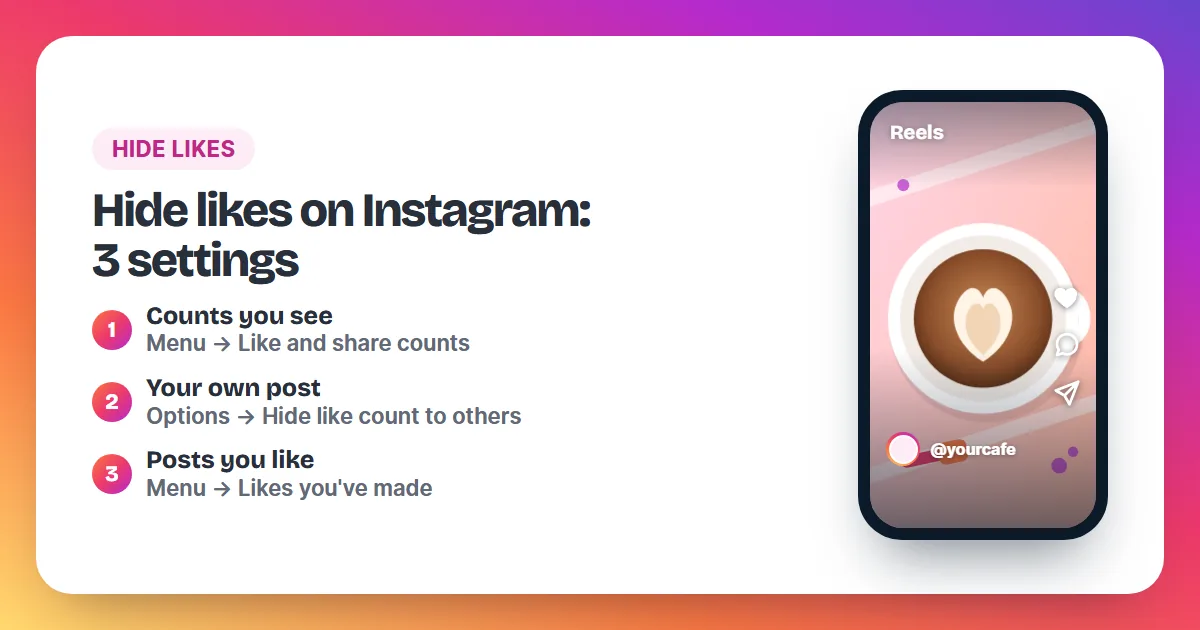
To hide likes on Instagram, open your profile, tap Menu, then Like and share counts, and switch on Hide like & share counts. That hides the numbers on posts you see. For your own post, tap Options (the three dots) on it and choose Hide like count to others.
Instagram has three separate like settings, and each one hides something different. This guide walks through all three with the menu names Instagram uses today, shows who still sees what, and explains how to undo each one. Hiding a count never deletes a like: every like stays on the post, and you keep seeing the full total on your own posts.
Which Instagram setting hides which likes?
| What you want to hide | Where the setting is | Whose screen changes |
|---|---|---|
| Like counts on posts and Reels you scroll past | Profile → Menu → Like and share counts | Only yours |
| The count on a post you are about to share | More options, on the last screen before sharing | Everyone except you |
| The count on a post you already shared | Options (⋯) on the post → Hide like count to others | Everyone except you |
| The posts and Reels you have liked | Profile → Menu → Likes you've made | Whoever you exclude |
How do I hide like counts on posts I see?
Go to your profile, tap Menu, and below What you see tap Like and share counts. Switch on Hide like & share counts. From then on, the posts and Reels in your feed show no like numbers on your screen.
The steps are the same on iPhone and Android:
- Tap Profile or your profile picture in the bottom right.
- Tap Menu (three lines) in the top right.
- Below What you see, tap Like and share counts.
- Switch on Hide like & share counts.
On a computer, click More in the bottom left, then Settings, then Like and share counts. This setting changes only your own screen. Everyone else still sees the counts, and the accounts that posted still see their totals.
How do I hide the like count on my own post before sharing it?
You can hide the count while you create the post, so the number never shows to others:
- Create your post as usual and go to the last screen, where you write the caption.
- Tap More options at the bottom.
- Switch on Hide like counts on this post.
- Share the post.
On a computer the button is called Advanced settings, and the switch reads Hide like and view counts on this post.
How do I hide likes on a post I already shared?
Open the post, tap Options (the three dots) in its top right corner and choose Hide like count to others. The number disappears for everyone else, and you bring it back from the same menu with Unhide like count to others.
Instagram's Help Center describes this setting one post at a time, so hide each older post you want hidden on its own. Your own view never changes: you still see the full count on every post you hid.
How do I hide the posts I like from other people?
Instagram also lets you choose who can see what you like on other people's posts and Reels:
- Go to your profile and tap Menu in the top right.
- Tap Likes you've made.
- Pick one option: Allow everyone to see likes, Allow people you follow to see likes, Allow close friends to see likes or Don't allow anyone to see likes.
One rule stays in place whatever you pick: the account that posted always sees that you liked its post or Reel. To take a like back completely, unlike the post. Our guide on how to see and remove your likes on Instagram shows how to unlike many posts at once.
What happens when you hide likes on Instagram?
Hiding likes on Instagram changes what people see, not what a post has. When you hide the like count on your own post, other people stop seeing the number, but you still see the full total and every like keeps counting. When you hide like counts on posts you see, the numbers vanish only from your own screen; the people who posted still see their totals. The likes themselves stay on the post in every case. The two settings also work on their own: hiding counts on posts you see leaves the counts on your own posts visible to others, and hiding the count on your own post leaves your feed unchanged. To hide both, turn on both settings. A third setting, Likes you've made, controls something else again: who can see the posts you like. Instagram explains all three in its Help Center articles on like counts and on managing who can see your likes.
How do I unhide likes on Instagram?
- Posts you see: Profile → Menu → Like and share counts → switch off Hide like & share counts.
- A post you shared: Options (⋯) on the post → Unhide like count to others.
- The posts you like: Profile → Menu → Likes you've made → choose who can see them again.
Why do people hide likes on Instagram?
Most people hide likes for one of three reasons:
- Less comparison: without numbers, the feed is about the photos, not the score.
- A quiet start: a new account can post while its counts are still small.
- Privacy: some people keep the posts they like to themselves.
If the reason is a low count on a post that deserves better, hiding is one answer. The other is getting more people to tap the heart: our guide on how to get more likes on Instagram lists the habits that work, and how Instagram counts likes explains what the number measures.
Questions about hiding likes on Instagram
Can I still see my own likes after hiding them?
Yes. Instagram keeps showing you the total number of likes on your own posts, even when the count is hidden from everyone else.
Does hiding likes on posts I see hide them for everyone?
No. That setting changes only your own screen. Other people, and the people who posted, still see the counts.
Can I hide likes on Reels?
Yes. Instagram's help article on hiding like counts covers both posts and Reels, and the Like and share counts switch hides the numbers on Reels you watch.
Is there one switch that hides likes on all my old posts?
Instagram's Help Center lists no such switch. It describes the setting for one shared post at a time, plus the option on the last screen before you share a new post.
Do bought likes still count when the number is hidden?
Yes. A hidden count still adds up every like, including likes you order. You see the full total on your own post, and others see it again when you unhide the count. Read is it safe to buy Instagram likes before you order.